Mails are the norm in nowadays communication in companies. Long threads of emails with dozens of people included in the recipient lists fill out inboxes. Some of those emails require some sort of action on your part, while others are just either informative or, directly, irrelevant. However, every time you go back to your email client, you feel overwhelmed with all those emails waiting for you. In fact, even leaving your email client closed may not free your mind, as those to-process emails will remain in some part of your brain, yelling at you.
Following, I’m sharing a way of managing your inbox to serve its main purpose: holding communications (not information).
A fresh start
- Clean all the emails you currently have in your inbox. Set aside a bunch of time every day to clean it to enjoy a “fresh” start.
- Notice very old items (depending on the specific business, the word “old” may mean different things) are candidates to be dispatched without much more action, as the answer expected is no longer needed. Anyway, take care at this point, as it is better to spend time with these emails, rather than be nervous about “what if I did not answer an important email?”
Store your emails to find them
Locating an email just when you need it is the most important thing you can use your email client for. For that reason, is important to categorize and sort your emails in the way your future self will try to search for them.
In my own experience, the best way is to have a folder structure (I use Outlook as an email client) that allows me to categorize every email. The structure is as follows:
- Projects -> Client name -> Project name: here I store the conversations I have had with customers, related to projects. This way, I can find any conversation in the context of a project, not just the customer or the sender. Anyway, if I need to refine my search, I can use the search bar to look for specific mail inside a folder. I also have all views sorted by time (the newest at the top), which helps me navigate through the history of a project.
- Internal -> Topic name: here I store the corporate emails, each one in the folder of the topic it relates to. For example, an email about holidays? Place it in the “Internal->Holidays” folder.
Some people say that just using the search bar of your email client should be enough to find an email. In my opinion, that works when you recall the exact words that were in the email, which is an option that vanishes as time goes by. I think that the search bar should be used to refine a search inside a category (folder, in this case).
Information should not be in your email client
Let’s face it: email clients store conversations and are optimized to manage conversations, but information should not be in your email client.
For example, if you are developing a user story and suddenly recall someone sent an email adding requirements to the user story, it may be hard to navigate through all the emails of the project to find out just the thread in which that topic was covered. It even may require you to read all the threads, as that information may be lost inside an endless thread of messages.
When you get an email with information that is relevant (or you feel it may be), copy it to the tool that best suits it. This could be:
- Your project management platform (Azure DevOps, Jira…) if the information relates to a user story.
- The password manager you may use (1Password, Bitwarden…) if the customer sends you the credentials for a database.
- Your own information system (Obsidian, Notion…) if the information relates to the architecture proposed for a new project.
- Your contacts management tool (Outlook, Google Contacts…) if you want to add the sender information (email, name, and position) to your knowledge base.
You should store the information in the appropriate tool, as it will help you find it later.
Tips & tricks
- When sending an email, write a subject that allows you (and the recipients) to know what the email is about just by looking at the subject, This will simplify finding the email you need by skimming in the appropriate folder.
- If your email client has a “favorites” option, use it and add just the folders that will store the emails about the topic you are working on now. This will simplify the process of moving emails from the inbox to the appropriate folder.
- Set 2 or 3 times per day to watch your inbox. This should be an explicit time you use for managing your inbox, so set it aside and try not to be disturbed, to do it in a focused state. During those periods, your goal is to process (not to clean) your inbox. If you do it consciously and focused, you will be surprised how fast you can process them. But…
- …in the same way, do not look at your inbox every five minutes (unless your work depends on giving real-time responses to them). Probably the emails you get will not require an immediate response. This way, you can spend the rest of your day focused on your daily tasks without getting stressed with those five new emails that have appeared in your inbox until your “inbox time”.
- Be kind and add the recipients to your emails consciously. Just add the people that need to answer it or need to be aware of the conversation. This way, people will not add you in every conversation that may not be relevant, which will free your inbox a lot. Be the first filter for the emails of your recipients and the (hopefully) will be the same for you.
An email processing flow
Taking into account all the previous topics, let’s see a flow for processing your inbox:
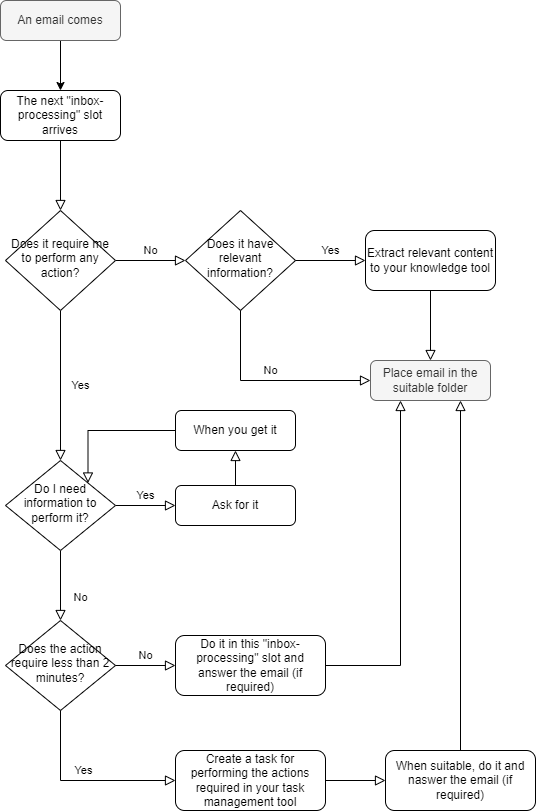
- An email arrives in your inbox. Ideally, you will not notice it, as you should see only when you look at your email client (2-3 times a day).
- When the moment to take a look at your inbox arrives, it is time to analyze each email.
- For each of them, think about whether they require you to take any action. If not, look whether it has relevant information for a project, client,… If so, store it where you store information (not the email client, of course) and place the email in the proper folder. If the content is irrelevant, just move the email to the proper folder, with no other action.
- If the email requires you to take action, it is time to decide if you have all the required information or, at least, are able to get it by yourself. If you need someone’s help, ask for it directly and keep your email in your inbox until you get the response that unblocks this email.
- Once you can process it by yourself, think about whether it takes long to perform the action required (including gathering information).
- If it does not require long (for example, less than 2 minutes), process that email and store it in the proper folder.
- If it will require a certain amount of time, create a task in your task management tool. Once you completed the task, answer the email and move it to the proper folder.